For professional mechanics, automotive enthusiasts, and DIYers working on GM, Saab, Isuzu, and Opel vehicles, the GM Tech 2 scanner is the gold standard of diagnostic tools. It provides deep factory-level diagnostics, module programming, and bi-directional controls that generic OBD2 scanners simply cannot touch.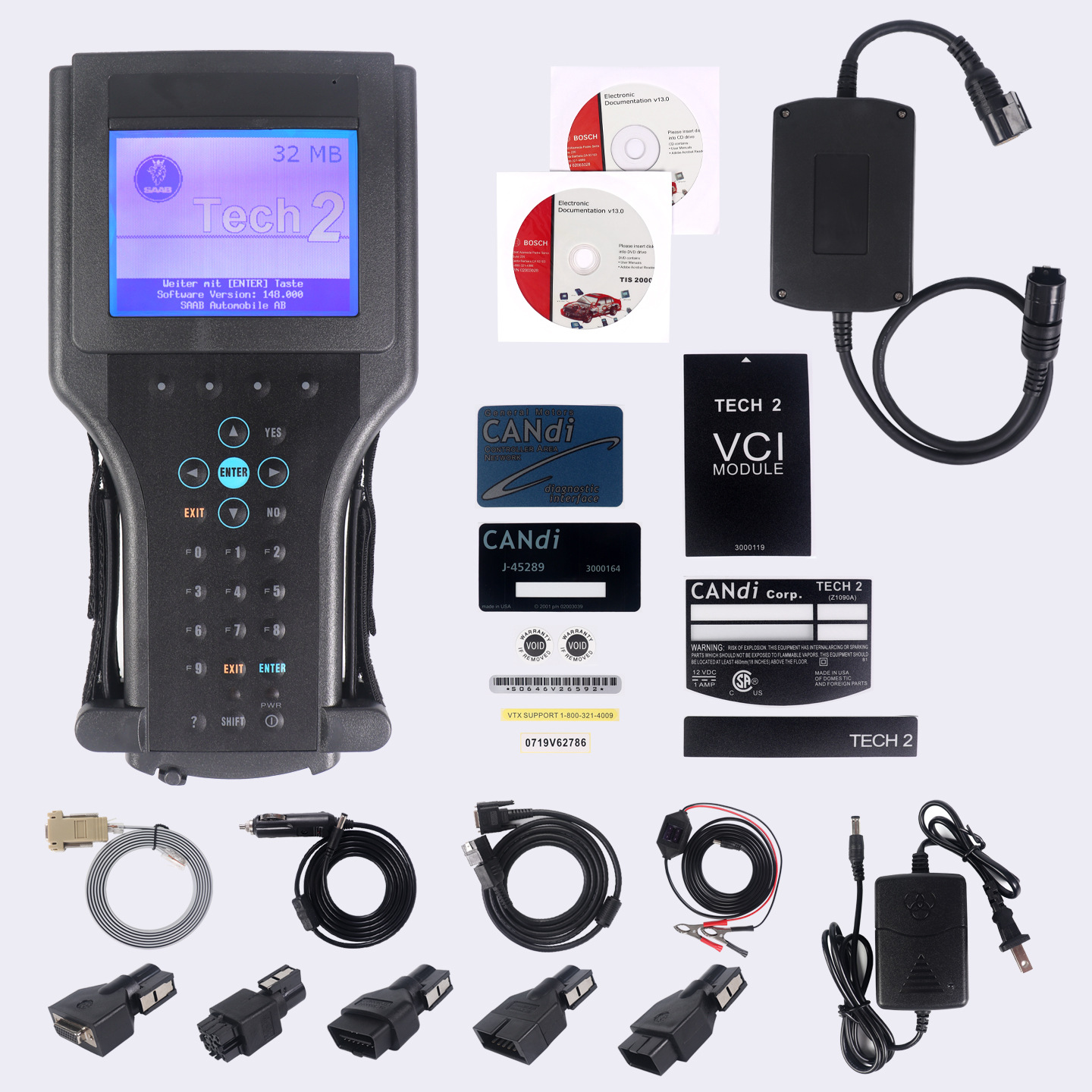
However, imagine the sinking feeling of unboxing a newly ordered Tech 2, plugging it into your vehicle's OBD2 port, watching it boot up just long enough to select your car model, and then—BAM—the screen goes completely blue, accompanied by persistent beeps. Every time you turn it on afterward, you get the exact same thing: power, beeps, and a lifeless solid blue screen.
Your first thought? "Is there some kind of warranty, return, or exchange on this?"
Before you box it back up, pay for international return shipping, or deal with the headache of a seller dispute, you might want to read this. What looks like a dead motherboard or a fried display unit is often a surprisingly simple fix that you can check yourself in minutes.
When expensive diagnostic equipment fails right out of the box, panic is entirely justified. Tech 2 clone units and even refurbished original tools represent a significant investment. Naturally, buyers immediately check return policies or look for warranty claims.
However, returning an item can take weeks of waiting for shipping, customs clearance, and seller communication. Before going through that hassle, consider what one frustrated buyer discovered after taking their "broken" Tech 2 to a local computer repair and electronics shop.
Instead of shipping the tool back immediately, the owner took the Tech 2 to a local tech shop on a Friday afternoon to see if an electronics specialist could diagnose the hardware failure.
To the technician's surprise, the problem wasn't a burned-out screen or a defective circuit board. Upon opening the rugged plastic housing, they discovered that the internal LCD screen ribbon cable was not plugged all the way into its socket on the back of the circuit board.
During assembly, shipping, or rough transit handling, the vibration and movement can occasionally cause friction-fit internal ribbon cables to work themselves partially or completely loose.
Once the technician fully seated the LCD connection back into the main board connector and locked it down properly, the device booted up instantly. Since that simple adjustment, the Tech 2 has been working completely flawlessly.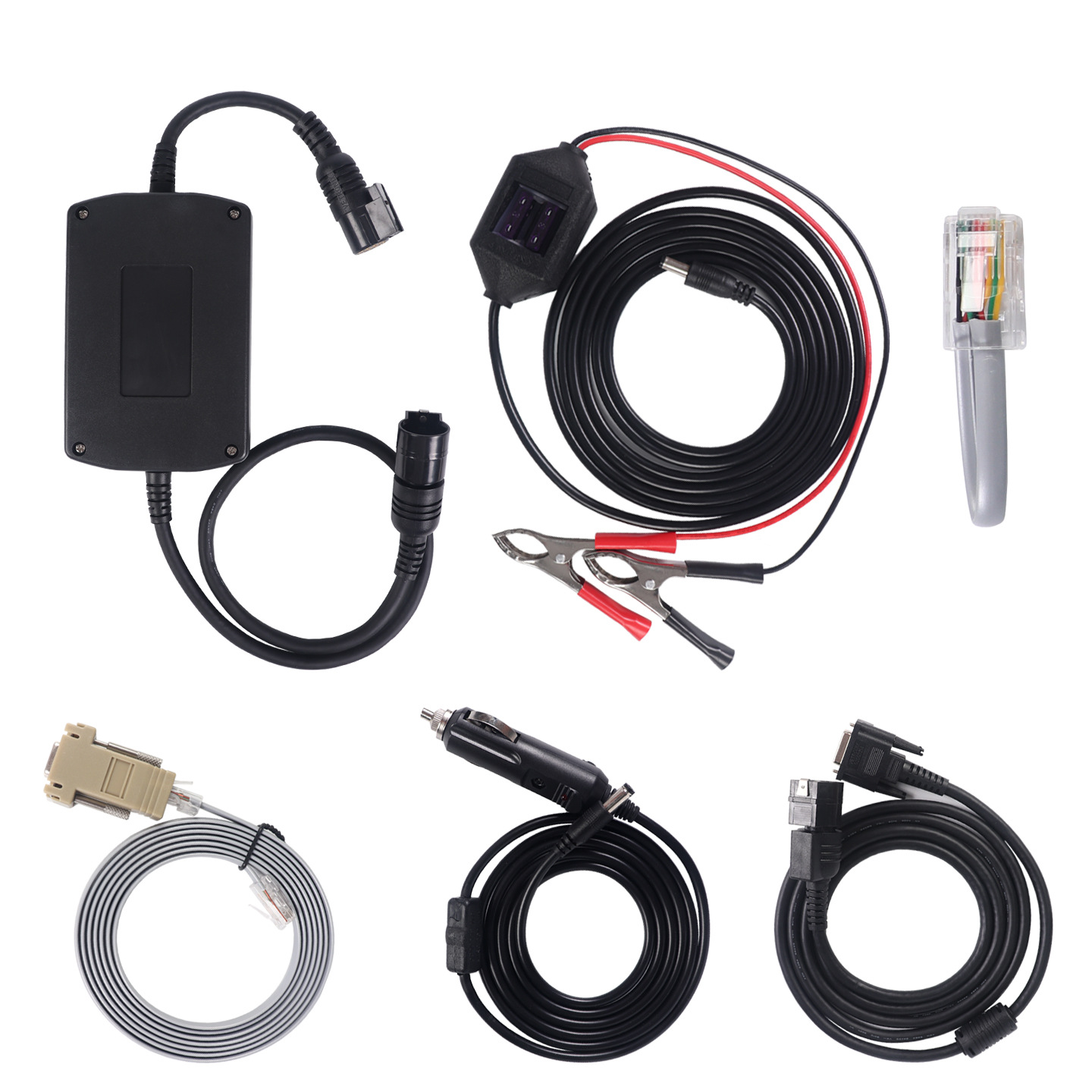
If your Tech 2 powers on, beeps, but displays a solid blue screen (or no display at all while functioning otherwise), a loose internal connection is a prime suspect. If you are comfortable working with basic electronics, you can check this yourself:
Disconnect Power: Ensure the Tech 2 is unplugged from both the car and any power supply.
Open the Housing: Carefully unscrew the outer shell of the Tech 2 unit. Keep track of the screws and open the casing gently to avoid pulling on internal wiring.
Locate the Main Board and Display Cable: Look at the back of the LCD screen assembly where it interfaces with the main circuit board via a ribbon cable or multi-pin connector.
Check the Seating: Gently push on the connector to ensure it is plugged all the way into its slot. If it is loose, carefully press it straight down until it is fully seated.
Test Before Reassembly: Temporarily plug the unit in (or connect it to power) to verify that the display springs back to life before tightening the enclosure back down.
Note: If your unit is under a strict warranty and you prefer not to open it yourself, contacting the seller for an exchange is still a viable option. However, checking the internal connection can save you weeks of downtime if it's just a loose cable!
Diagnostic tools like the GM Tech 2 are ruggedly built, but they are still complex electronic assemblies. Before stressing over warranty claims or international returns for a "blue screen of death," a quick check of the internal wiring might save you a lot of time and trouble.
Have you ever encountered weird glitches with your automotive diagnostic tools? Let us know in the comments below, and stay tuned to www.obd2sky.com for more real-world automotive diagnostic tips, tool reviews, and troubleshooting guides!